Manage Zoom Provider Exchange numbers
The Number Management page lets you manage numbers that have been loaded to customer tenants:
| ■ | View managed DIDs: All numbers that have been loaded to service are displayed in the Number Management page. You can view the Number and change it's settings. |
| ■ | Release numbers: You can remove numbers from Live Platform as required. |
| ■ | Configure SIP Connections: All numbers loaded to Live Platform have an associated SIP Connection that is linked to an SBC IP Group used for routing the call and for aggregating Voice Quality and Calls data in the Live Platform Operation Center. |
| ■ | Call Screening: Call screening manages incoming phone calls by identifying and filtering them before the recipient answers: |
| ● | Blocks unwanted cold calls from sales agents or from Spam numbers to minimize distractions and interruptions in every day operations |
| ● | Prioritizing to only answer calls from specific contacts or numbers or direct routing of urgent calls to users while routing less urgent calls to voice mail. |
| ● | Enhancing Security by verifying the identity of the caller before connecting the call. |
| ● | Improving Productivity by ensuing that only relevant calls reach employees. |
| ■ | Call Forwarding: Call forwarding is a telephony feature that redirects incoming calls to another number or destination. |
| ● | Automatically forwards calls when the line is busy, unanswered, or out of service. |
| ● | Lets employees receive work calls on their mobile phones or home lines when away from the office. |
| ● | Routes calls to an on-call staff member or voice mail outside of business hours. |
| ● | Directs calls to different departments or team members based on availability or workload. |
| ● | Ensures business continuity by forwarding calls to alternate locations during outages or emergencies. |
| ● | Forwards unanswered calls to voice mail for later retrieval. |
| ■ | Number Types: Each number can be configured for one of the following types: |
| ❖ | User: Numbers for assigning to calling users (not applicable to CX service) |
| ❖ | Service: Numbers for assigning to services running external applications such as Emergency Calling applications and Fax IVR or Voca (not applicable to CX service) |
| ❖ | Contact Center: Numbers for assigning to Contact Center agents |
| ■ | Zoom Usage Type:(this parameter is supported on Zoom API V3): |
| ● | Zoom Phone (only displayed when 'Service' is selected) for regular business calls (internal or external) |
| ● | Zoom Contact Center (default) for routing calls through customer engagement management omnichannel systems (voice, video, chat, SMS) with advanced features like skills-based routing, queues, and AI for customer support. |
| ● | Unallocated |
| ■ | CAC Values: Configure CAC value for Contact Center and Service Numbers which limits the number of concurrent call sessions for the number |
The AudioCodes Metering service is used by AudioCodes to charge
|
Number Type |
Metering Component |
||||||||||||
|---|---|---|---|---|---|---|---|---|---|---|---|---|---|
|
User |
User numbers are metered according to the following component:
The 'User' number type is configured |
||||||||||||
|
Service |
Service numbers are metered according to the following components:
|
||||||||||||
|
Contact Center |
Contact Center numbers are metered according to the following component:
|
| ➢ | To open Number Management page: |
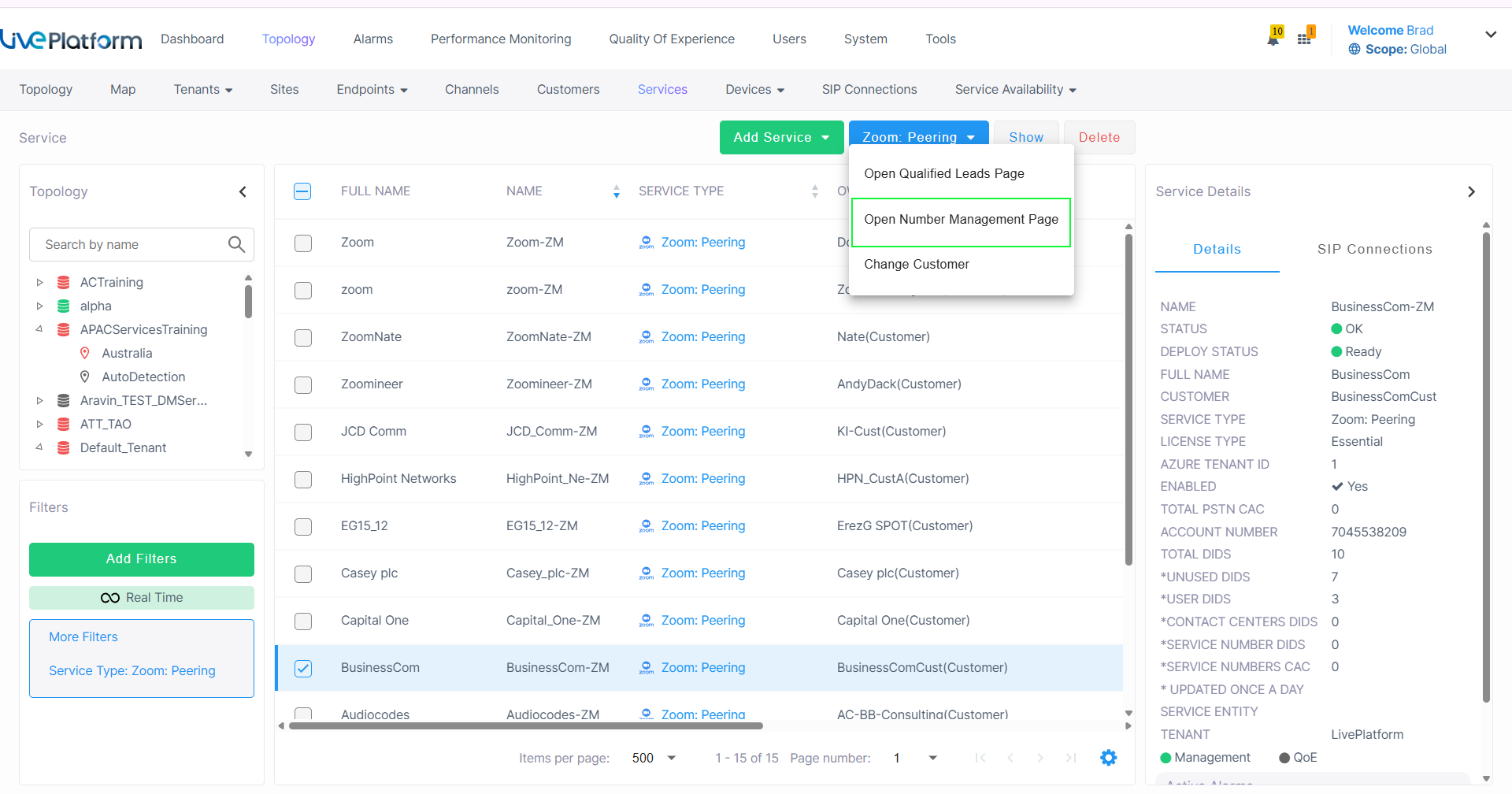
| 1. | In the Services page, select the check box adjacent to the service that you wish to configure. |
| 2. | From the Zoom Peering drop-down menu, choose Open Number Management Page. |
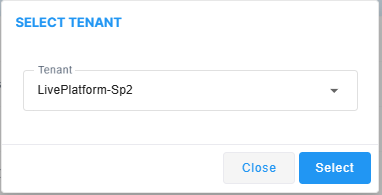
| 3. | From the Select Tenant drop-down, choose the Live Platform tenant and then click Select. |
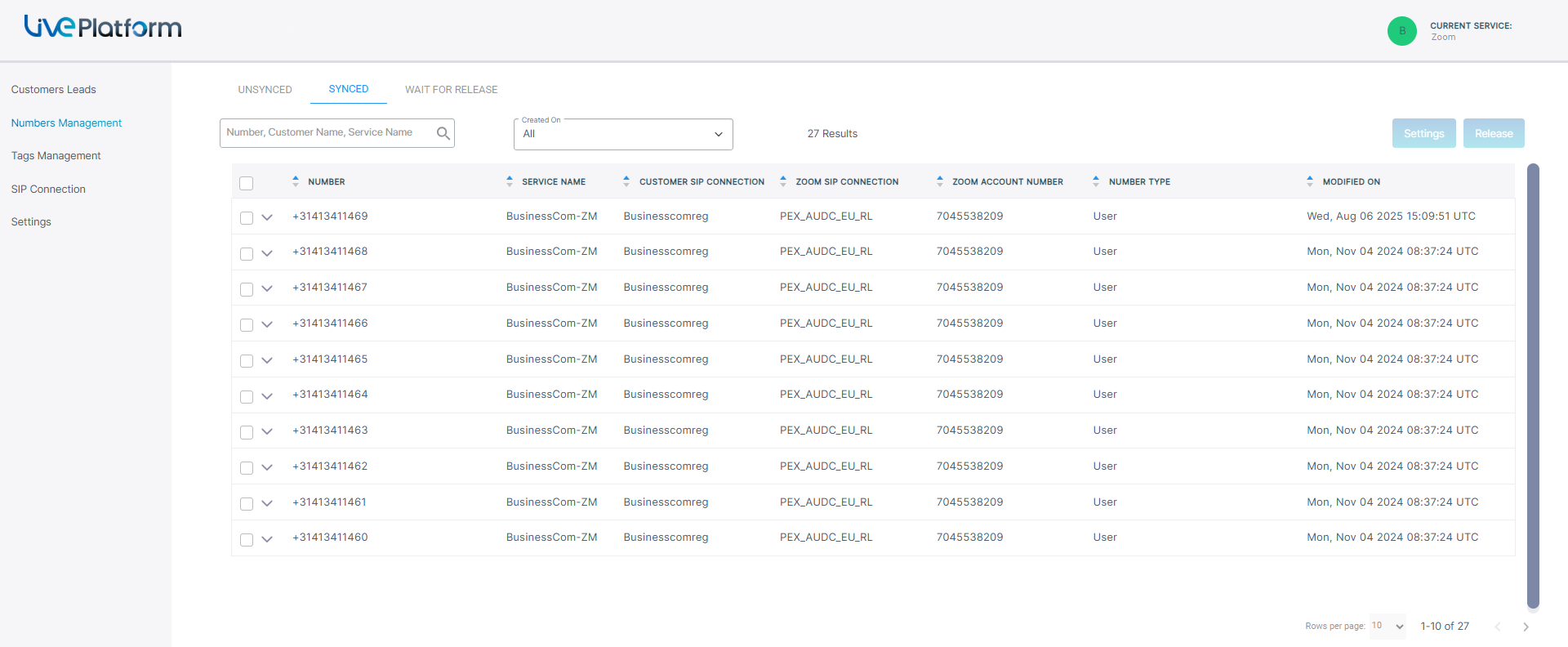
The table below describes the parameters in this page.
|
Parameter |
Description |
|||||||||
|---|---|---|---|---|---|---|---|---|---|---|
|
Number |
The Uploaded phone number. |
|||||||||
|
Service Name |
The name of the service to which the number is assigned. |
|||||||||
|
Customer SIP Connection |
The name of the SIP Connection for which incoming and outgoing calls for this number are connected. |
|||||||||
|
Zoom SIP Connection |
The Zoom SIP Connection region. |
|||||||||
|
Zoom Account Number |
The customer Zoom Account number |
|||||||||
|
Number type |
The Number type configured for the number when uploaded:
Number type is read-only for Zoom Mode V3 numbers. |
|||||||||
|
Modified On |
Time and Date of the last modification of the number. |
You can click the down arrow adjacent to the check box to display the details of the number.

| ➢ | To configure a number: |
| 1. | Select the check box adjacent to the number that you wish to configure and then click Settings. |
 .
.
Number Settings-V3
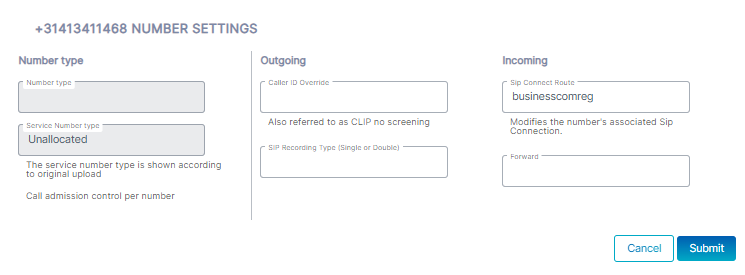
Number Settings-V2
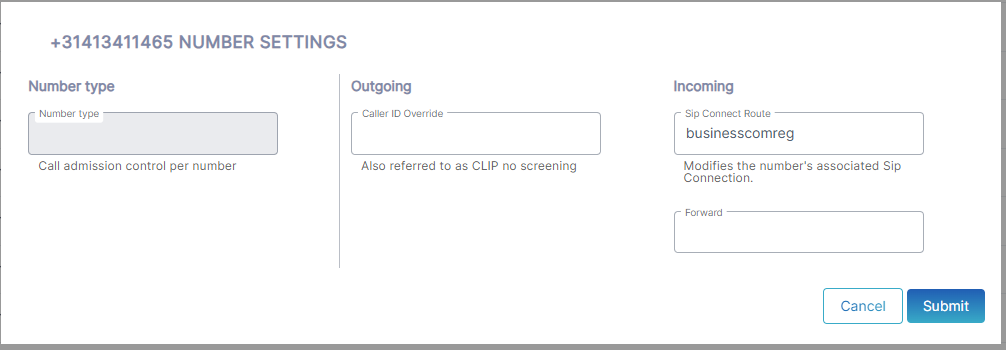
| 2. | Configure parameters according to the table below and then click Submit. |
|
Parameter |
Description |
||||||||||||
|---|---|---|---|---|---|---|---|---|---|---|---|---|---|
|
Number type |
The Number type configured for the number when uploaded:
Number type is read-only for Zoom Mode V3 numbers. |
||||||||||||
|
Service Number Type |
The Zoom Usage Type configured in the Number upload (read-only):
This parameter is only displayed when the customer is configured in Zoom V3 mode. |
||||||||||||
|
CAC Value |
Enter the maximum number of concurrent sessions to apply to the number. This value is configurable for Contact Center and Service numbers. For Number type 'User', this parameter value is configured (range 2-10) |
||||||||||||
|
Outgoing (Caller ID Override) |
Enter the CLIP No Screening number. This feature allows an Outgoing caller to present a custom caller ID as a screening number that is not the actual number assigned by the network provider and that is not verified. This number should be in E.164 format. |
||||||||||||
|
SIP Recording Type (Single or Double) |
|
||||||||||||
|
SIP Connect Route |
From the SIP Connect Route drop-down, select the SIP Connection for routing incoming calls. |
||||||||||||
|
Forward |
Enter the destination number to forward incoming calls to this number (the number you are configuring). Both numbers are configured on the same SIP Connection. |